
Table of Contents
Introduction
I have owned 4 iPhones in the past, and I have already faced problems like the iPhone not charging and even the iPhone black screen issue. Because of that, I understand how frustrating it can be when your phone suddenly refuses to charge.
Many iPhone users experience this problem at some point. Sometimes the battery is not actually damaged. In many cases, the issue comes from dust inside the charging port, a faulty cable, or a software problem.
The good news is that most charging problems can be fixed at home without spending money on repairs. In this guide, I will show you simple steps that can help get your iPhone charging again.
Why This Happens
Several things can prevent an iPhone from charging correctly.
Common causes include:
- Dust or lint inside the charging port.
- A damaged charging cable.
- A faulty wall adapter.
- Software bugs.
- Unsupported accessories.
- Battery problems.
Many people immediately assume they need a battery replacement, but the real problem is often much simpler.
Step-by-Step Solution
Step 1: Clean the charging port.
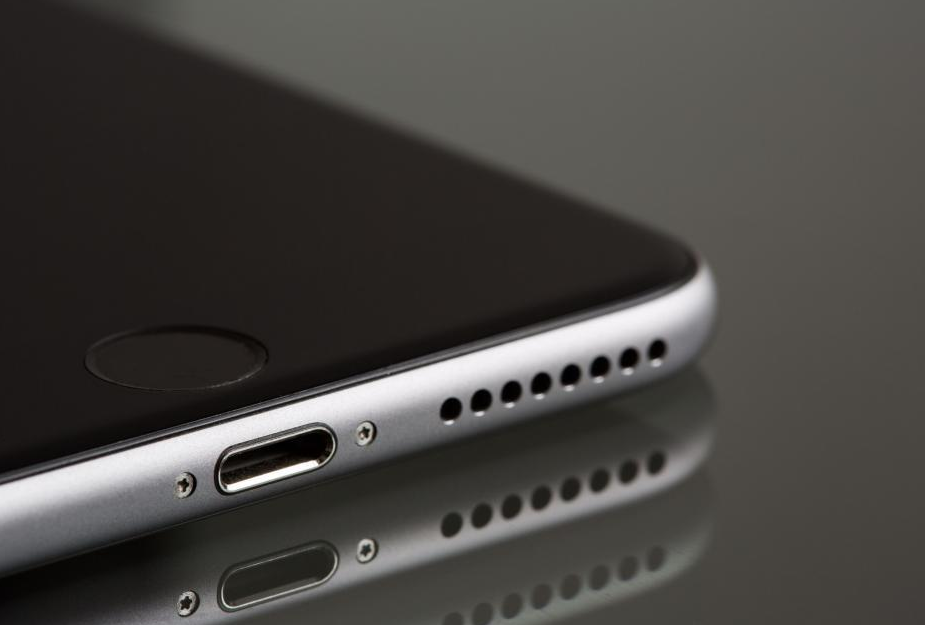
I remember one of my iPhones stopped charging properly. I took it to a phone repair technician, and surprisingly, the fix was very simple. He only cleaned the charging port, and the problem was solved within minutes.
One of the most common causes of charging problems is dirt inside the charging port.
Pocket lint, dust, and debris can slowly build up inside the port and prevent the cable from making a proper connection.
Turn off your iPhone first.
Then inspect the charging port carefully.
You can use:
- Compressed air.
- A soft brush.
- A wooden toothpick very carefully.
Avoid using metal objects because they can damage the charging pins.
After cleaning the port, reconnect the charger and check if charging starts normally.
Step 2: Check the Charging Cable
A problem I’ve encountered several times is a damaged charging cable. In many cases, the cable itself is the reason why the iPhone won’t charge properly.
If that happens, replacing the cable is usually the easiest solution. If you want a reliable option, you can buy an official cable directly from Apple or use another certified accessory.
Charging cables wear out over time.
Look for:
- Broken wires.
- Bent connectors.
- Visible damage.
Even if the cable looks normal, try another cable if possible.
Many charging problems are caused by faulty cables.
Step 3: Try Another Charger
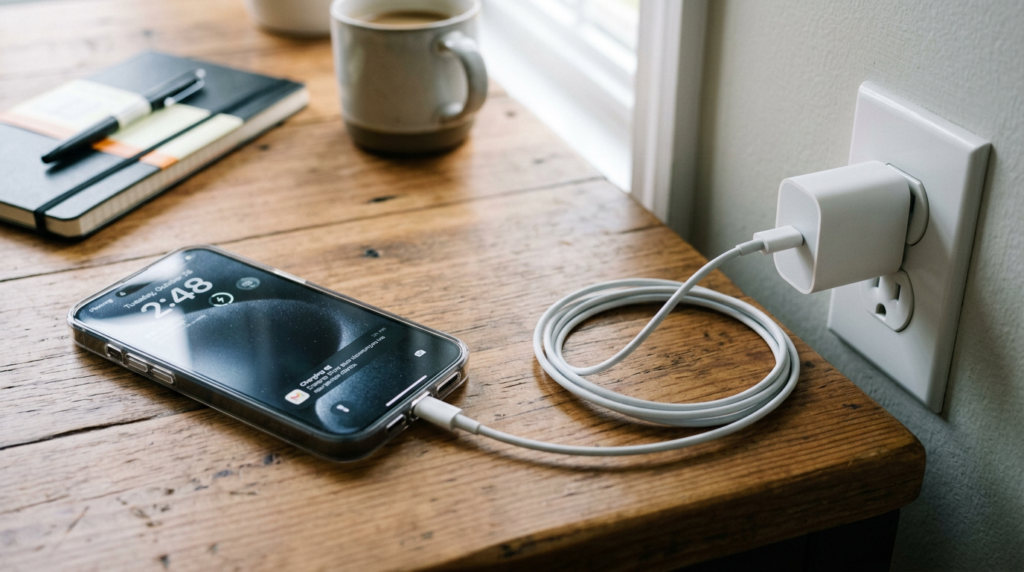
Sometimes the charging brick itself is the problem.
Try:
- Another wall adapter.
- Another USB port.
- Charging through a computer.
This simple test can quickly identify whether the charger is causing the issue.
Step 4: Try Another Wall Outlet
A faulty power outlet can stop your phone from charging.
Move to another room and try a different outlet.
This is a simple step, but many users forget to test it.
Step 5: Leave the iPhone charging for one hour.
If the battery is completely drained, your iPhone may need some time before showing signs of life.
Leave the device connected for about one hour.
Sometimes the battery icon appears after several minutes.
Step 6: Restart Your iPhone
Temporary software glitches can interfere with charging.
Restart your device and then reconnect the charger.
Many users have solved charging problems with a simple restart.
Step 7: Update iOS
Outdated software can sometimes create charging issues.
Go to:
Settings → General → Software Update
Install the latest version available.
Step 8: Check Battery Health
Older batteries lose performance over time.
Go to:
Settings → Battery → Battery Health
If the battery health is very low, replacing the battery may be necessary.
Additional Solutions
Use Another Certified Accessory
Some cheap accessories do not work properly with iPhones.
Try using an Apple-certified cable and charger.
Remove Thick Phone Cases
Some cases prevent the cable from connecting correctly.
Remove the case and test charging again.
Try wireless charging.
If your iPhone supports wireless charging, test it.
If wireless charging works but cable charging does not, the charging port may be damaged.
Force Restart Your iPhone
A force restart can solve deeper software issues.
Different iPhone models use different button combinations.
Common Mistakes to Avoid
- Using damaged charging cables.
- Ignoring dust inside the charging port.
- Using unsupported accessories.
- Cleaning the port with metal objects.
- Assuming the battery is always the problem.
- Buying a new battery before basic troubleshooting.
Frequently Asked Questions
Why is my iPhone not charging?
The problem may come from the charging port, cable, adapter, software, or battery.
How do I fix an iPhone that won’t charge?
Start by cleaning the charging port and testing another cable.
Do I need technical skills to solve this problem?
No. Most troubleshooting steps are simple and safe.
Can this problem happen again?
Yes. Dust and normal cable wear can cause future charging problems.
Is it safe to clean the charging port?
Yes, but avoid using sharp metal objects.
Conclusion
An iPhone that refuses to charge does not always mean expensive repairs are required. In many situations, the problem comes from dirt inside the charging port, damaged accessories, or minor software bugs.
By following these troubleshooting steps one by one, most users can solve the issue without visiting a repair shop.
Once you follow these steps, the problem should be fixed.