

Table of Contents
1. Introduction
I know the iPhone black screen or iPhone not charging is one of the most frustrating problems you can face. One minute your phone is working normally, and the next minute the screen goes completely black with no warning.
I also went through this problem. I thought my iPhone was damaged, but the problem turned out the battery had come loose. If your iPhone has already been dropped, there’s a good chance you’ll encounter this problem. In my case, the phone looked completely dead, but the hardware was fine—the battery simply wasn’t properly connected anymore.
The good news is that a black screen doesn’t always mean your iPhone is permanently damaged. Many cases are caused by software crashes, battery issues, charging problems, or loose internal connections rather than serious hardware failure.
In this guide, I’ll walk you through the real solutions that actually work, based on real-world troubleshooting experience and the most common causes of the iPhone black screen problem.
2. What Causes the iPhone Black Screen Problem?
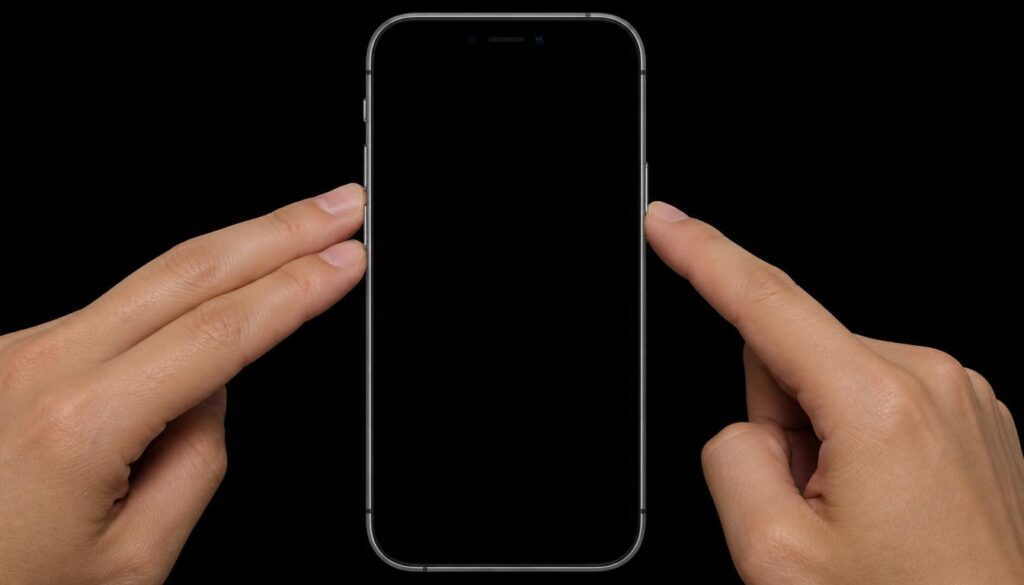
There is no single cause. The black screen can happen due to several different reasons:
1. iOS System Crash
Sometimes the operating system freezes during startup or after an update. When this happens, the phone cannot boot properly and stays on a black screen.
2. Deep Battery Discharge
If your battery drops too low, the iPhone may take time to wake up. In some cases, it looks completely dead even though it is charging internally.
3. Loose Battery Connection (Very Common After Drop)
This is one of the most overlooked causes. If the phone falls, the battery connector inside can shift slightly. The phone stops receiving stable power and becomes completely unresponsive.
4. Display Failure
Sometimes the phone is actually ON, but the screen is not working. You may still receive calls, notifications, or vibrations.
5. Charging System Problem
A faulty charging port, cable, or power IC can stop the phone from charging or booting correctly.
6. Hardware Short or Internal Damage
Less common, but severe drops or water exposure can damage internal circuits.
3. How to Fix iPhone Black Screen (Step-by-Step Real Solutions)
You must follow these steps in order. Do not skip.
Step 1: Force Restart (Most Important Fix)
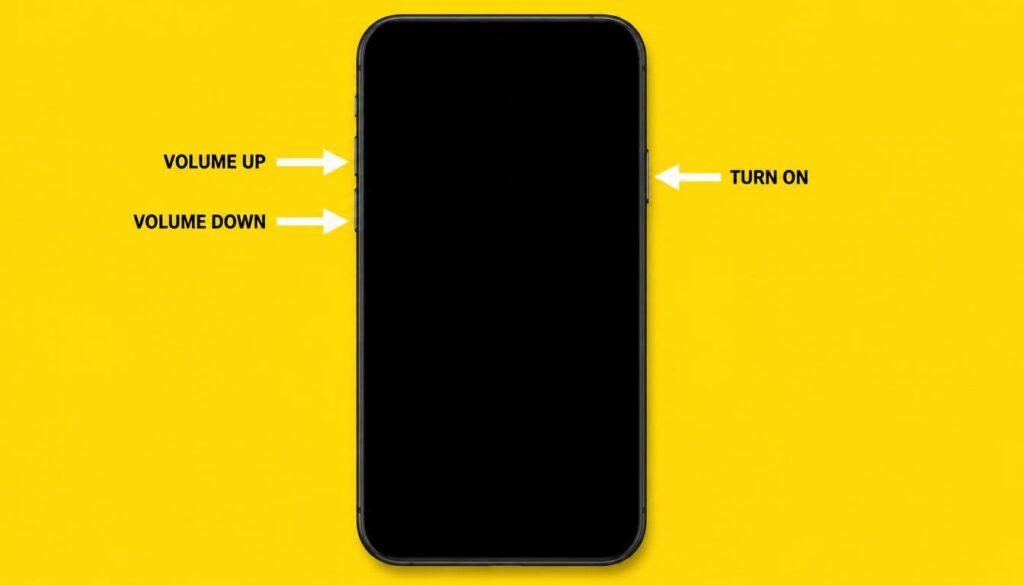
This is the first and most effective solution for most users.
How to do it correctly:
Press Volume Up once and release
Press Volume Down once and release
Hold the Power Button (Side Button)
Keep holding until you see the Apple logo
If your phone were frozen, this would instantly reset the system and bring it back.
Step 2: Proper Charging Method
Many users think their phone is dead when it is actually fully drained.
What to do:
Use an original or certified Apple charger
Plug it in and leave it for at least 30 to 60 minutes
Do not try turning it on immediately
If the battery were deeply discharged, it may take time before the screen shows anything.
Step 3: Check If the Phone Is Actually Working
Sometimes the iPhone is ON but the screen is dead.
Test it like this:
Call your number from another phone
Check if it rings or vibrates
Connect it to a computer (iTunes/Finder)
Try Bluetooth connection
If it responds, the issue is the display, not the phone itself.
Step 4: Battery Connection Issue (Real Hardware Problem)
This is very important and often ignored.
I also went through this problem. I thought my iPhone was damaged, but the problem turned out the battery had come loose. If your iPhone has already been dropped, there’s a good chance you’ll encounter this problem.
When the battery connector inside becomes slightly loose, the phone
- Turns completely black instantly
- Does not charge properly
- Does not respond to buttons
- Works randomly before shutting off again
This cannot be fixed with software. It requires opening the phone and reconnecting the battery properly. A technician is usually needed for this.
Step 5: Recovery Mode Fix (Software Repair)
If the system is corrupted, you must use recovery mode.
Steps:
Connect iPhone to a computer
Open iTunes or Finder
Press Volume Up → Volume Down → Hold Power
Keep holding until recovery mode appears
Choose “Update” first (not “Restore”).
This will reinstall iOS without deleting your data in most cases.
Step 6: DFU Mode (Advanced Users Only)
If recovery mode fails, DFU mode is the deepest software restore option. It completely reloads the firmware but will erase all data.
Step 7: Check Charging Accessories
Try a different cable and adapter because low-quality accessories often fail to deliver proper power.
Step 8: Let the Device Rest
If the phone overheated or crashed, leave it for 20–30 minutes before retrying. Sometimes the system needs time to stabilize.
4. Additional Solutions
- Leave the phone charging for more than 1 hour
- Check for water or humidity damage
- Try another wall socket
- Inspect for physical damage after a drop
5. Common Mistakes to Avoid
- Pressing buttons repeatedly for long time
- Using fake or cheap chargers
- Opening the phone without experience
- Assuming the phone is permanently dead immediately
- Trying random “internet magic fixes”
Most iPhone black screen cases are recoverable if handled correctly.
6. Frequently Asked Questions (FAQ)
Q1: Why is my iPhone black but still ringing?
The phone is ON, but the screen is not working.
Q2: Does a force restart delete data?
No, it only restarts the system.
Q3: Can dropping an iPhone cause a black screen?
Yes, it can loosen the battery or internal connectors.
Q4: How long should I charge a dead iPhone?
At least 30 to 60 minutes before trying again.
Q5: Is a black screen always serious?
No, most cases are software or battery-related and fixable.
7. Conclusion
The iPhone black screen problem looks serious but is often not permanent damage. Most cases come from system crashes, deep battery discharge, or loose internal battery connections after a drop. The key is to follow the steps in order: force restart, proper charging, and system recovery, and only then consider hardware repair.
In many real cases, the phone is fully recoverable without replacing it.