
Table of Contents
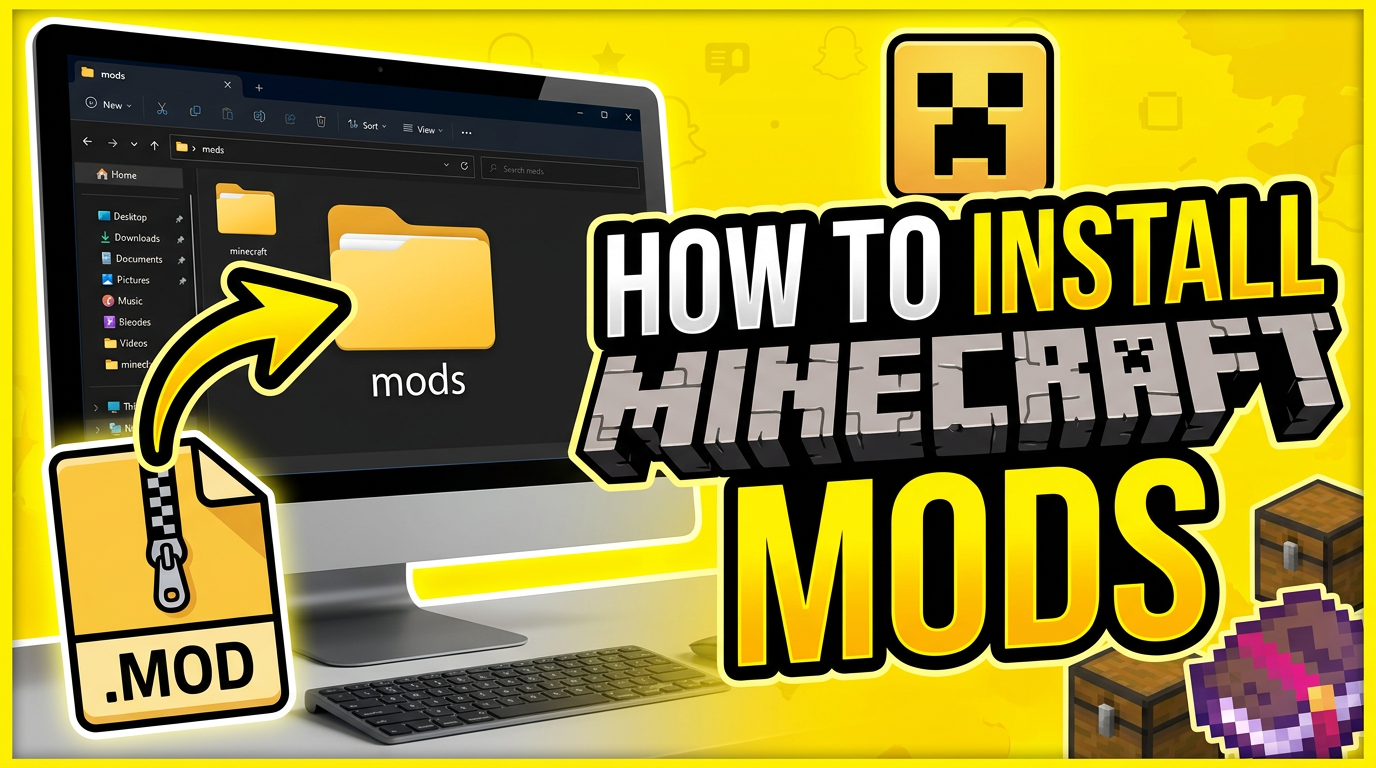
How to Install Minecraft Mods
Introduction:
I’ve been playing Minecraft for a while, and at some point I started using mods to make the game more interesting. That’s actually where Minecraft becomes something completely different.
Mods can change almost everything in the game. You can add new items, explore new worlds, improve graphics, and even change how the game works completely. That’s why most players start looking for mods after they get comfortable with the basic game.
But installing mods is not as simple as just downloading a file and opening it. Minecraft doesn’t support mods by default, so you need a proper setup before anything works.
Most beginners get stuck because they miss small but important steps like installing a mod loader, using the correct version of Minecraft, or putting the files in the right folder. Once you understand the correct order, installing mods becomes very easy and fast.
In this guide, I will show you the simple way to install Minecraft mods without confusion or errors.
How to Install Minecraft Mods Step-by-Step Solution
Step 1: Check Your Minecraft Version
Before installing anything, open Minecraft and check your version. Mods are built for specific versions, and using the wrong one will break everything.
For example, a mod made for 1.20 will not always work on 1.21.
Step 2: Install a Mod Loader (Most Important Step)
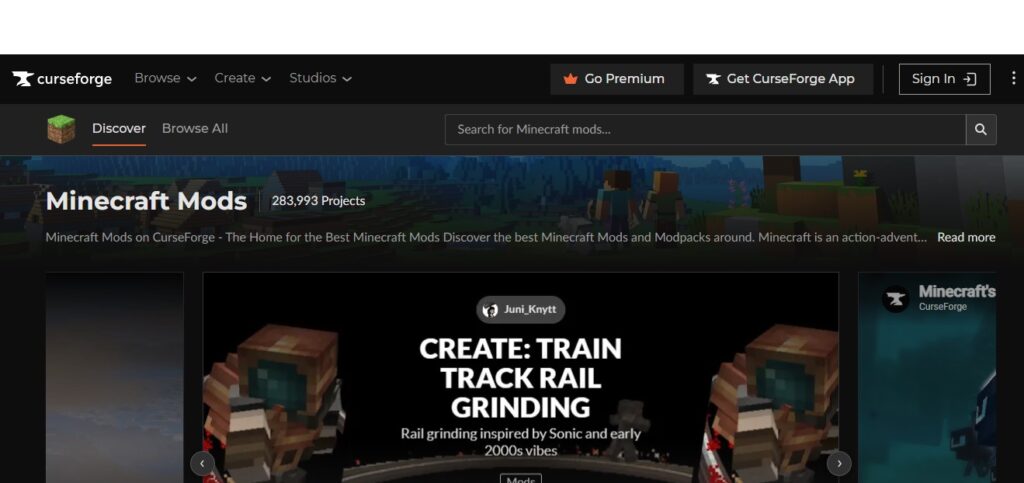
CurseForge is a website where you can find a lot of Minecraft mods. I recommend this website for you to check mods.
Minecraft cannot run mods alone. You must install a mod loader.
The two main options are Forge and Fabric.
Forge is used for many large and classic mods. Fabric is lighter and works well with newer mods.
You must install the correct one depending on the mod you want to use. If you choose the wrong loader, the mod will not appear in the game.
Step 3: Download the Correct Mod
After installing the loader, download the mod file.
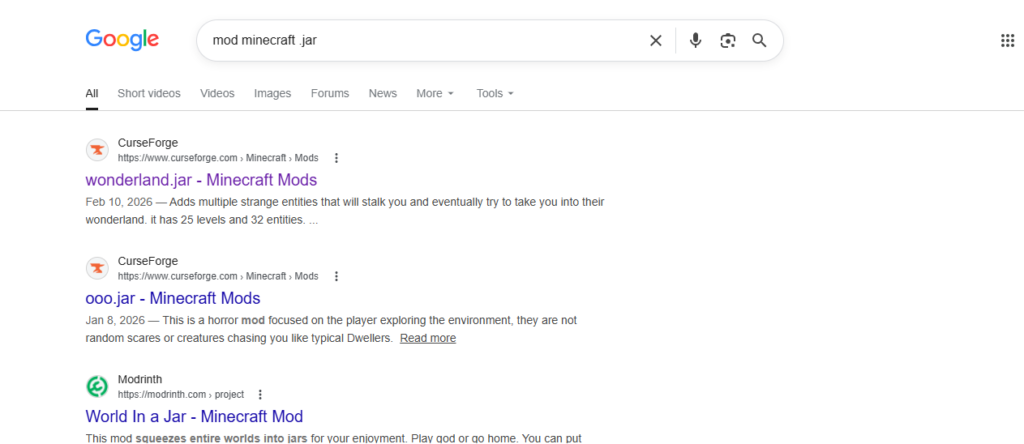
Just tap on “Google Mod Minecraft Jar,” and you are going to find a lot of mods like in this picture.
Make sure:
- It matches your Minecraft version
- It matches your mod loader
Most mods come as a .jar file. Do not open it and do not extract it.
Step 4: Open the Mods Folder
Now you need to find the Minecraft folder.
On Windows:
Press Windows + R
Type %appdata%.minecraft
Press Enter
Look for a folder called mods.
If it does not exist, create it manually and name it mods.
Step 5: Install the Mod
Move the downloaded .jar file into the mods folder.
That’s it. No extra steps needed here.
Do not rename the file and do not extract it because Minecraft reads it directly.
Step 6: Launch Minecraft
Open the Minecraft Launcher.
Make sure you select the correct profile:
Forge or Fabric, depending on what you installed.
If you launch the wrong profile, the mods will not load.
Step 7: Check If the Mod Works
Start a world and check if the mod is active.
You should see new items, blocks, or features depending on the mod.
If everything appears correctly, the installation is successful.
Additional Tips or Alternatives
Always update your mods when Minecraft updates.
If the game becomes slow, increase RAM allocation in launcher settings.
If you install many mods, use modpacks instead of installing them one by one.
Always back up your worlds before installing new mods.
Common Mistakes to Avoid
Installing mods for the wrong version
Forgetting Forge or Fabric
Extracting .jar files
Mixing Forge and Fabric mods
Downloading mods from unsafe websites
Frequently Asked Questions
Do Minecraft mods work on all versions
No, they are version-specific
Do I need Forge for every mod
No, some mods use Fabric
Why does Minecraft crash after mods
Usually version mismatch or wrong setup
Can I remove mods later
Yes, delete them from mods folder
Can mods break my world
Yes, if they are incompatible, so backups are important
Conclusion
The most important part of installing Minecraft mods is the setup process. Once you install the correct mod loader and place the mod file in the right folder, everything becomes easy.
Most problems come from skipping steps or using the wrong version. If you follow the installation steps carefully, you can run mods without any issues and fully customize your Minecraft experience.