
Table of Contents
Introduction:
I’ve managed multiple YouTube channels over time, and I know how confusing it can get when you decide to delete some of them. Many users reach this point when they want to clean up their online presence, start fresh, or simply stop managing old content.
Deleting a YouTube channel is not as straightforward as it seems. YouTube hides the option inside account settings and YouTube Studio, which makes it difficult for beginners to find. On top of that, if you are using multiple channels under the same Google account, it becomes even easier to end up in the wrong place.
In many cases, users think they deleted a channel, but they were actually logged into a different account or channel. That’s why it’s important to understand the correct steps, including how to switch accounts, view all channels, and access the right settings before deleting anything.
This guide will show you a clear and safe way to delete a YouTube channel step by step.
Step-by-Step Solution: How to Delete a YouTube Channel?
Switch to the Correct YouTube Account
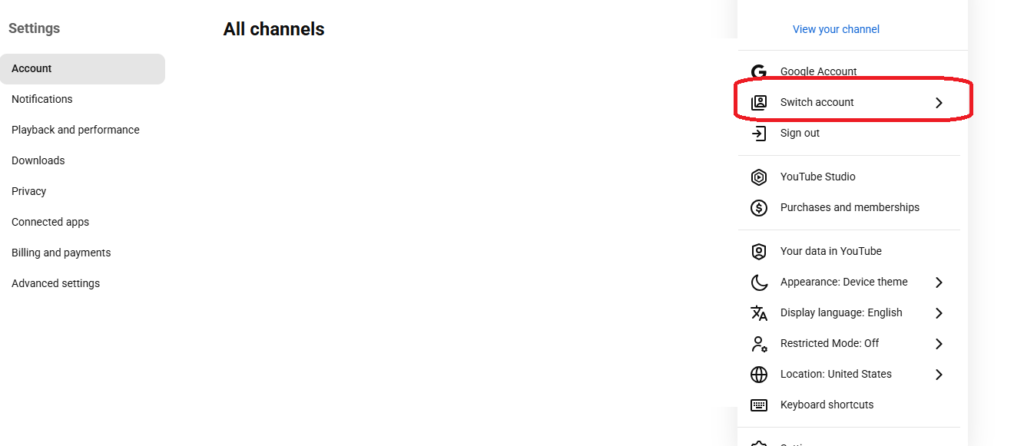
Before doing anything, make sure you are logged into the right channel.
Steps:
- Open YouTube
- Click your profile icon (top right corner)
- Select Switch account
- Choose the channel you want to delete
👉 If you manage multiple channels, this step is very important. Many users delete the wrong channel by mistake.
View All Your Channels
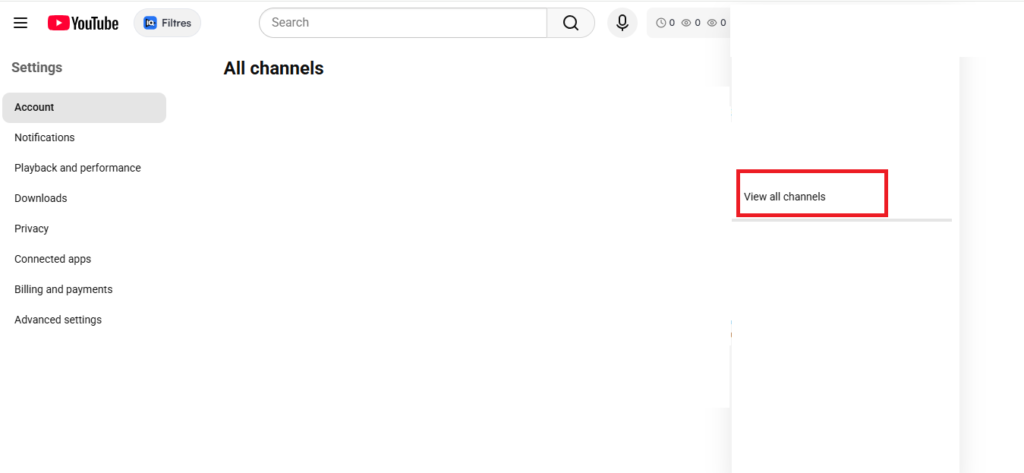
Sometimes one Google account has multiple YouTube channels.
Steps:
- Click your profile icon
- Select View all channels
- You will see a list of all channels connected to your account
- Select the correct one
💡 Real example:
A user may have a personal channel + a gaming channel under the same Gmail. They often confuse both.
Go to YouTube Studio
Now that you’re on the correct channel:
Steps:
- Click your profile icon
- Select YouTube Studio
This is the main control panel for your channel.
Open Advanced Settings
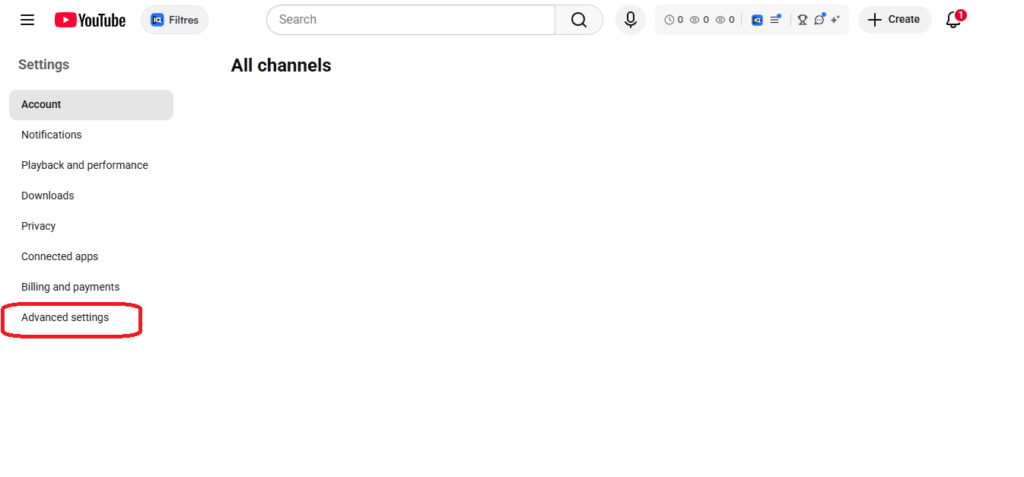
Inside YouTube Studio:
Steps:
- Scroll down on the left menu
- Click Settings
- Go to Channel
- Click Advanced settings
Here you will find channel-level options, including deletion.
Delete Your YouTube Channel
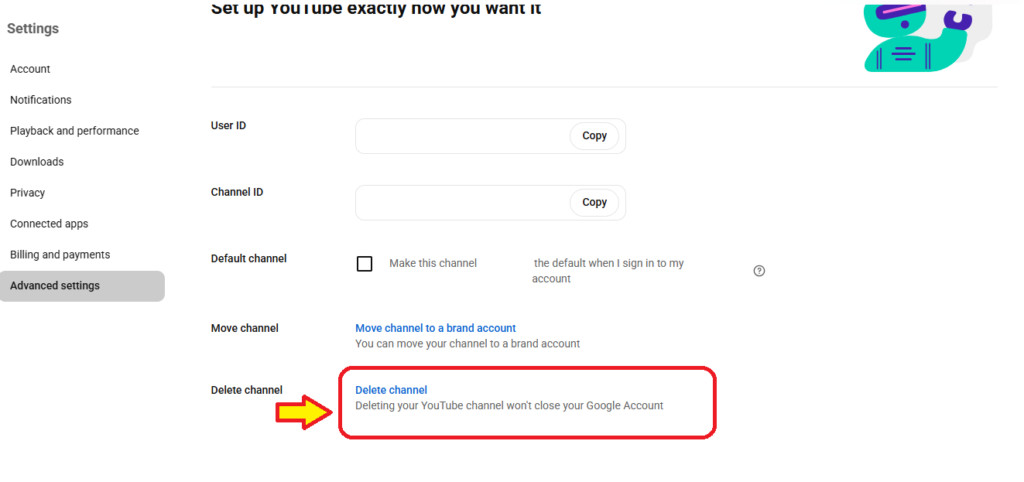
Now comes the final step.
Steps:
- Scroll to the bottom of Advanced Settings
- Click Remove YouTube content
- You may be asked to sign in again
- Choose:
- I want to permanently delete my content
- Confirm deletion
YouTube will show what will be removed, including the following:
- Videos
- Comments
- Playlists
- Channel data
Finally:
- Confirm by clicking Delete My Content
⚠️ This action is permanent.
Additional Tips or Alternatives
Instead of deleting, you can hide your channel
If you’re unsure, YouTube allows you to:
- Hide videos
- Make channel private
- Remove content without deleting everything
Download your data before deleting
Before deletion, you can save everything:
- Go to Google Takeout
- Select YouTube data
- Download your videos and history
Consider disabling instead of deleting
If you only want a break:
- You can remove content but keep the Google account active
Common Mistakes to Avoid
Deleting the wrong channel
Always double-check using “Switch account” and “View all channels.”
Thinking YouTube Studio is the same for all accounts
Each channel has separate settings even under the same Gmail.
Not backing up videos
Once deleted, videos cannot be recovered.
Confusing “delete” with “sign out”
Logging out does NOT delete your channel.
Skipping Advanced Settings
Many users search randomly instead of going through YouTube Studio → Settings → Advanced.
Frequently Asked Questions
1. Can I recover a deleted YouTube channel?
No. Once deleted, it is permanent and cannot be restored.
2. Does deleting my YouTube channel delete my Google account?
No. Only the YouTube content is deleted, not your Gmail or Google services.
3. How long does deletion take?
Usually a few minutes, but complete removal from systems may take longer.
4. Can I delete only videos instead of the whole channel?
Yes. You can manually delete videos from YouTube Studio without removing the channel.
5. What happens to my comments after deletion?
All comments made under that channel will also be removed.
Conclusion
Deleting a YouTube channel is simple once you understand where the option is hidden. The key steps are switching to the correct account, opening YouTube Studio, going into Advanced Settings, and confirming deletion.
Most mistakes happen because users skip account switching or confuse multiple channels under the same Gmail. If you follow the steps carefully, you can delete your channel safely without errors.
Before doing it, always consider downloading your data or hiding your content instead because deletion is permanent and cannot be reversed.