

Table of Contents
Introduction
I have been using Outlook for a long time, and I know how frustrating it can be when you accidentally send an email with a mistake. Maybe you attached the wrong file, forgot important information, sent the message to the wrong person, or simply realized there was an error seconds after clicking the Send button.
Almost everyone has experienced that moment of panic at least once. The good news is that Outlook includes a recall feature that may allow you to recover the message before it causes any problems.
In this guide, I’ll show you exactly how to recall an email in Outlook, explain why recalls sometimes fail, and share practical solutions that can help you avoid similar mistakes in the future.
Why This Happens
Before learning how to recall an email, it’s important to understand why users need this feature in the first place.
Sending an Email Too Quickly
One of the most common reasons is rushing through an email and clicking Send before reviewing the content carefully.
Wrong Recipient
Many Outlook users accidentally select the wrong contact from the address book, especially when multiple contacts have similar names.
Missing Attachments
A forgotten attachment is one of the most common workplace email mistakes. The email gets sent, and only afterward does the sender realize the document was never attached.
Incorrect Information
Dates, pricing details, meeting times, and other important information may contain errors that require immediate correction.
Confidential Information
In rare situations, an email may accidentally contain information intended for someone else, making a recall attempt extremely important.
Fortunately, Outlook provides tools that can help if the situation is caught quickly.
How to Recall an Email in Outlook (Step-by-Step)
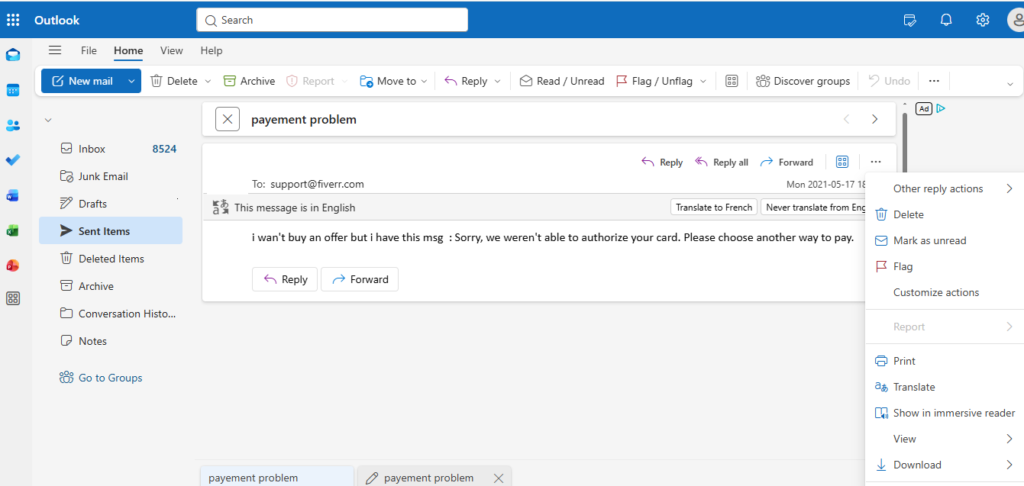
The recall feature is available under specific conditions. Follow these steps carefully.
Step 1: Open Outlook
Launch Outlook and go to your Sent Items folder.
The message you want to recall must still be located in your Sent Items folder.
Step 2: Open the Sent Message
Double-click the email you want to recall.
The message must be opened in its own window. Simply previewing the message is not enough.
Step 3: Locate the Recall Option
Inside the opened email:
- Click the File tab if necessary.
- Select Info.
- Choose Message Resend and Recall.
- Click Recall This Message.
Depending on your Outlook version, the exact location may vary slightly, but the recall option is generally found within the message actions menu.
Step 4: Choose Your Recall Action
Outlook typically provides two options:
Delete Unread Copies of This Message
This option attempts to remove the email from recipients’ inboxes if they have not opened it.
Delete Unread Copies and Replace With a New Message
This option removes the original email and allows you to send a corrected version immediately.
For example, if you forgot an attachment, you can select this option and resend the message with the correct file attached.
Step 5: Request Notification
You may see a checkbox labeled:
“Tell me if recall succeeds or fails for each recipient.”
Enable this option.
It allows Outlook to notify you about whether the recall attempt was successful.
Step 6: Complete the Process
Click OK and allow Outlook to process the recall request.
If you selected the replacement option, Outlook will open a new message window where you can make corrections before sending again.
Additional Solutions
Unfortunately, Outlook recalls do not always work. If your recall attempt fails, consider these alternatives.
Send a Correction Email
The fastest solution is often sending a follow-up email.
For example:
“Please disregard my previous email. The correct information is included below.”
Most recipients appreciate prompt corrections and clear communication.
Contact the Recipient Directly
If the email was important or confidential, consider contacting the recipient immediately by phone, Teams, or another communication method.
This is often more reliable than waiting for a recall notification.
Use Delay Delivery in Future Emails
A useful Outlook feature is Delay Delivery.
This allows outgoing emails to remain in your Outbox for a specified period before actually being sent.
For example, you can configure Outlook to delay all outgoing messages by two minutes. This creates a safety window for catching mistakes.
Review Emails Before Sending
Developing a habit of reviewing recipients, attachments, and message content before sending can prevent most recall situations entirely.
Use Drafts for Important Messages
For high-priority communications, save the message as a draft and review it later before sending.
Many professionals use this method for contracts, proposals, and executive communications.
Common Mistakes to Avoid
Many users misunderstand how Outlook recalls work.
Assuming Recall Works Everywhere
The recall feature has limitations.
In many cases, it only works properly when both sender and recipient use Microsoft Exchange within the same organization.
Waiting Too Long
The longer you wait, the higher the chance that the recipient has already opened the email.
Once the email is read, recall success becomes unlikely.
Ignoring Recall Notifications
Always monitor recall results.
Some recipients may receive the original message despite your recall attempt.
Forgetting Mobile Devices
Even if a recall works on a desktop Outlook client, recipients may have already viewed the message through a mobile device.
Relying Only on Recall
Recall should not be considered a guaranteed solution. A correction email is often the safer and more effective approach.
Frequently Asked Questions
Q1: Can I recall an email after it has been read?
Generally, no. If the recipient has already opened the message, the recall process is unlikely to succeed.
Q2: Does Outlook recall work with Gmail recipients?
In most situations, Outlook recall does not work effectively with external email providers such as Gmail or Yahoo Mail.
Q3: Will the recipient know I attempted a recall?
Possibly. Depending on their Outlook configuration, they may receive a notification indicating that a recall attempt was made.
Q4: Can I recall multiple emails at once?
No. Each message typically requires an individual recall request.
Q5: What is the best alternative to recalling an email?
Sending a clear correction email immediately is often the most reliable solution.
Conclusion
Sending an email by mistake can be stressful, especially when important information, confidential details, or missing attachments are involved. Fortunately, Outlook provides a recall feature that may help recover from these situations when used quickly and under the right conditions.
The process is simple: locate the sent message, choose the recall option, and decide whether to delete the original email or replace it with a corrected version. However, it’s important to understand that recall success depends on several factors, including whether the recipient has already opened the message and whether both parties are using compatible Outlook environments.
If a recall fails, don’t panic. A professional follow-up email, direct communication with the recipient, or future use of Outlook’s delay delivery feature can often solve the problem effectively.
By understanding how Outlook recall works and following the steps outlined in this guide, you can reduce the impact of email mistakes and communicate more confidently in both personal and professional settings.