
Table of Contents
Introduction
I’ve already built and managed several WordPress blogs for different projects, so for me the process feels very straightforward. That’s why I want to break it down in a simple way for anyone who is just starting out.
Most beginners think starting a blog is complicated because they try to handle everything at the same time: domain, hosting, WordPress installation, design, and content creation. The real issue is not technical difficulty; it’s confusion caused by not knowing the correct order of steps.
When someone launches their first blog, they often reach the same point where things get unclear: they buy a domain, open their hosting dashboard, and suddenly they don’t know what to do next. I’ve seen this situation many times, especially with people who are motivated to start a blog but feel overwhelmed by too many options inside cPanel or hosting panels.
The truth is simple: building a WordPress blog is not hard when you follow a clear sequence. Once you understand the right workflow, you can go from zero to a fully working blog in a short time even without any technical background.
Why Beginners Struggle to Start a WordPress Blog
Most beginners fail at the beginning for simple reasons:
- They don’t understand the difference between domain and hosting
- They try to design the site before installing WordPress
- They get lost inside cPanel because it looks complicated
- They follow random tutorials instead of a clear sequence
For example, someone might buy a domain like exampleblog.com, but then they don’t know what to do after that. Others buy hosting and expect the website to appear automatically, which is not how it works.
The real issue is not difficulty; it’s lack of structure.
How to Start a Blog on WordPress: Step-by-Step Solution
Choosing a Domain
Your domain is your website name on the internet.
Examples of good blog domains:
- techhelpdaily.com
- simpleblogguide.com
- myonlinejournal.com
A good domain should:
- Be short and easy to remember
- Avoid complicated spelling
- Match your blog topic
Buying Hosting (Namecheap Example)
Hosting is where your website files are stored.
When using Namecheap, you usually choose a shared hosting plan for a new blog.
Example setup:
- Domain: domaine.com
- Hosting: Namecheap shared hosting plan
After purchase, Namecheap gives you access to your hosting dashboard.
Connecting Domain to Hosting
After buying hosting, you must connect your domain.
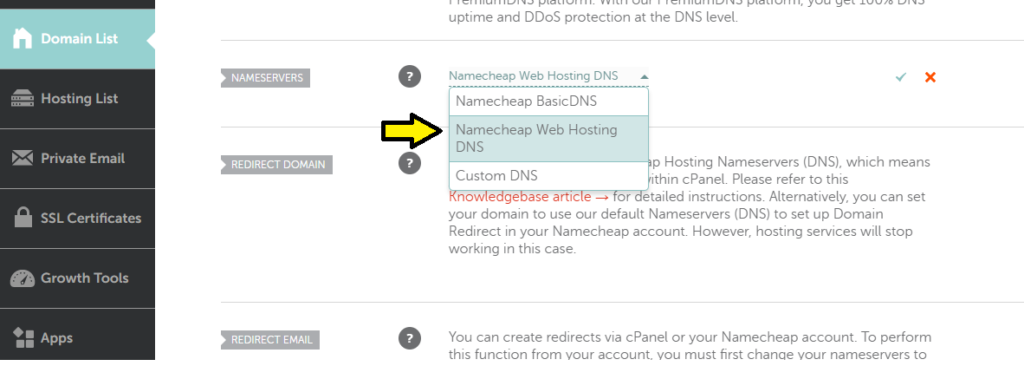
This is done by updating nameservers.

Example:
- ns1.namecheaphosting.com
- ns2.namecheaphosting.com
Once updated, your domain starts pointing to your hosting account.
This process can take a few minutes to a few hours.
The easiest way is to use the Namecheap Web Hosting DNS section if you already have hosting.
Accessing cPanel
cPanel is the control panel of your hosting.
Inside cPanel, you can manage:
- Files
- Emails
- Databases
- Website settings
To access it:
- Log in to your hosting account
- Open the cPanel section
- Wait for the dashboard to load
At first, it may look complex, but you only need a few parts.
Installing WordPress

Inside cPanel, most hosting providers include a WordPress installer.
You simply:
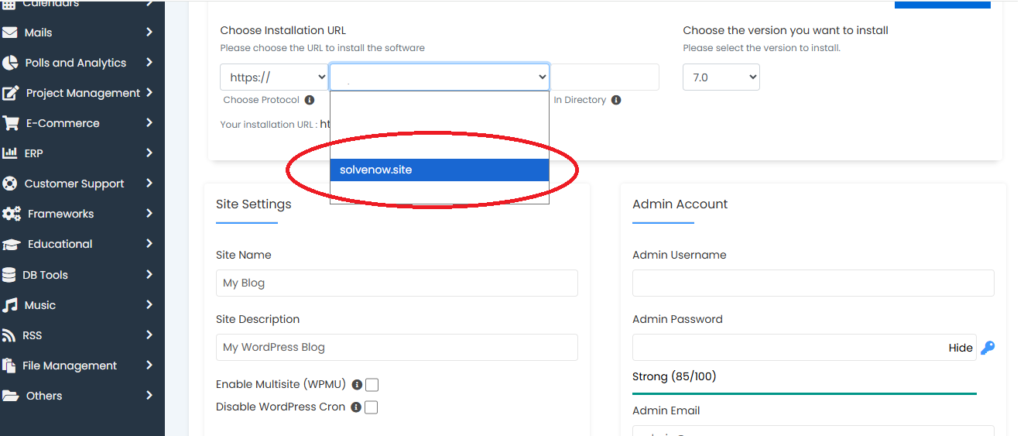
- Open the WordPress installer tool
- Select your domain (example: domaine.com)
- Click install
After installation, WordPress creates your website automatically.
Logging Into Dashboard
Your WordPress login link will look like:
- yourdomain.com/wp-admin
Example:
- techhelpdaily.com/wp-admin
You enter:
- Username
- Password
Now you are inside the WordPress dashboard.
Setting Up Theme
A theme controls how your website looks.
Steps:
- Go to Appearance
- Click Themes
- Click Add New
- Choose a simple theme
Example themes:
- Astra
- GeneratePress
- Kadence
Avoid heavy themes that slow down your site.
Creating Essential Pages
Every blog needs basic pages:
- About Page → who you are
- Contact Page → how to reach you
- Privacy Policy → required for ads and SEO
Example:
If your blog is about tutorials, your About page should explain what type of guides you publish.
Publishing First Post
To publish your first article:
- Go to Posts
- Click Add New
- Write your title
- Add content
- Click Publish
Example first post ideas:
- How to fix common phone problems
- Beginner guide to apps
- Simple tech tutorials
Additional Fixes & Tips
- Install a lightweight SEO plugin like Rank Math
- Use SSL (HTTPS) for security
- Keep your design simple
- Focus on writing useful content, not design perfection
Common Mistakes Beginners Make
- Buying domain but not understanding hosting
- Installing too many plugins
- Using slow or heavy themes
- Not publishing content regularly
- Overthinking design instead of writing
FAQ (5 questions)
1. Do I need coding to start WordPress?
No, WordPress works without coding.
2. How much does it cost to start a blog?
Only domain + hosting costs.
3. Can I change my theme later?
Yes, you can change it anytime.
4. Is Namecheap good for beginners?
Yes, it is beginner-friendly and easy to manage.
5. How long does it take to launch a blog?
Usually less than 1 hour if everything is ready.
Conclusion
Starting a WordPress blog is not complicated when you follow the correct order. The key is understanding the flow: domain → hosting → cPanel → WordPress → content.
Most beginners fail not because of technical difficulty but because they don’t follow a structured process. Once you set up your first blog, everything becomes much easier the next time.
Focus on publishing content first and improving your website step by step.