
Table of Contents
Introduction: How to Fix a Slow Laptop?
I’ve had four PCs in the past, and I know how frustrating it is when your laptop becomes slow. I’ve faced this problem myself several times. In fact, one of my old computers was almost unusable until I made a few changes that completely improved its performance.
Many people experience slow laptops after using them for a few years. Programs take forever to open, Windows becomes sluggish, and even simple tasks start feeling frustrating.
The good news is that you don’t always need to buy a new computer. In this guide, I’ll show you the same solutions that helped me speed up my laptops.
Why This Happens
Several things can make a laptop slow.
Common causes include:
- Old HDD storage.
- Too many startup programs.
- Low available storage space.
- Outdated software.
- Running too many applications at the same time.
- Malware or unwanted programs.
In many cases, the storage drive is the biggest reason behind poor performance.
Step-by-Step Solution
Step 1: Replace the HDD With an SSD
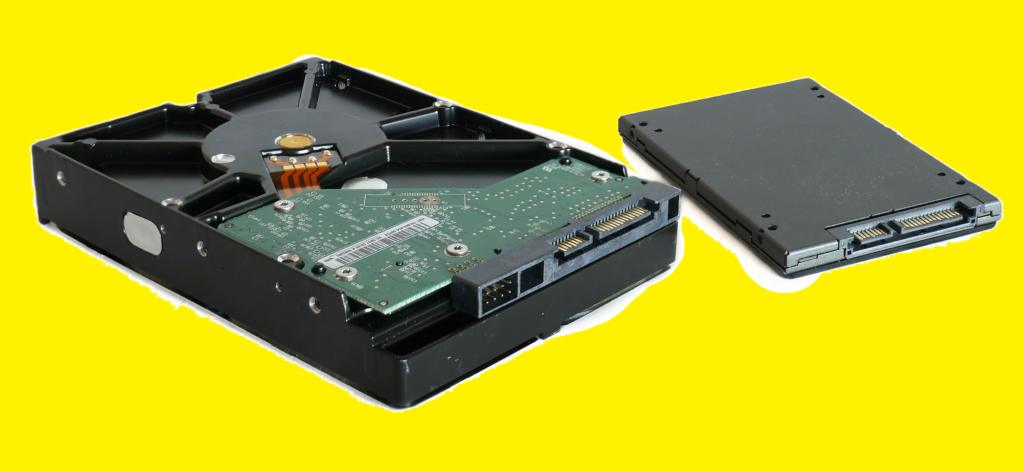
This is the biggest improvement I’ve personally experienced.
One of my old laptops was extremely slow because it still used a traditional hard drive. After replacing the HDD with an SSD, the difference was huge. Windows booted faster, programs opened almost instantly, and the laptop felt like a completely different machine.
If your laptop still uses an HDD, upgrading to an SSD is often better than buying a new computer.
Step 2: Restart Your Laptop
Many people leave their laptops running for days or weeks.
A simple restart clears temporary processes and can immediately improve performance.
Step 3: Disable Startup Programs
Too many startup applications slow down Windows.
Open Task Manager and disable programs that you don’t need to launch automatically.
This can noticeably reduce boot time.
Step 4: Free Up Storage Space
A nearly full drive can affect performance.
Delete unnecessary files and uninstall programs you no longer use.
Keeping free space available helps Windows run more smoothly.
Step 5: Scan for Malware
Viruses and unwanted software can consume system resources.
Run a full scan using Windows Security or your preferred antivirus program.
Step 6: Update Windows
Updates often include performance improvements and bug fixes.
Install pending updates and restart your laptop afterward.
Step 7: Close Unnecessary Background Applications
Running too many programs at once can slow even powerful laptops.
Close applications that you are not actively using.
Additional Solutions
Add More RAM
If your laptop frequently runs out of memory, upgrading RAM can improve multitasking.
Clean Dust From the Cooling System
Overheating can reduce performance.
Cleaning dust from fans and air vents helps maintain proper temperatures.
Reset Windows
If the laptop remains slow after trying everything else, resetting Windows may help remove software-related issues.
Common Mistakes to Avoid
- Assuming you need a new laptop immediately.
- Ignoring an old HDD.
- Installing too many unnecessary programs.
- Keeping storage almost full.
- Running dozens of applications at the same time.
- Skipping Windows updates.
Frequently Asked Questions
Why is my laptop so slow?
Slow laptops are often caused by old hard drives, low storage space, startup programs, or outdated software.
What is the fastest way to speed up a laptop?
Replacing an HDD with an SSD usually provides the biggest improvement.
Do I need technical skills to install an SSD?
No. Many laptops allow easy upgrades, and repair shops can also perform the installation.
Can a slow laptop become fast again?
Yes. In many cases, simple upgrades and maintenance can restore performance.
Is it better to buy a new laptop?
Not always. Upgrading to an SSD and adding RAM can often save money and extend the life of your current laptop.
Conclusion
A slow laptop doesn’t always mean it’s time to replace it. In my experience, upgrading from an HDD to an SSD made the biggest difference.
Combined with regular maintenance and a few simple adjustments, most laptops can become much faster and easier to use.
Once you follow these steps, the problem should be fixed.